Google Ads Verification Failed? Check These 5 Mismatches
A failed Google Ads advertiser verification is not one error with one fix. The failure may concern your identity document, legal organization name, payments profile, business relationships, licensing, website disclosures or the verification workflow itself. Before using another attempt, identify which layer failed and make the account, documents and public business information tell the same verifiable story.

August 11, 2026
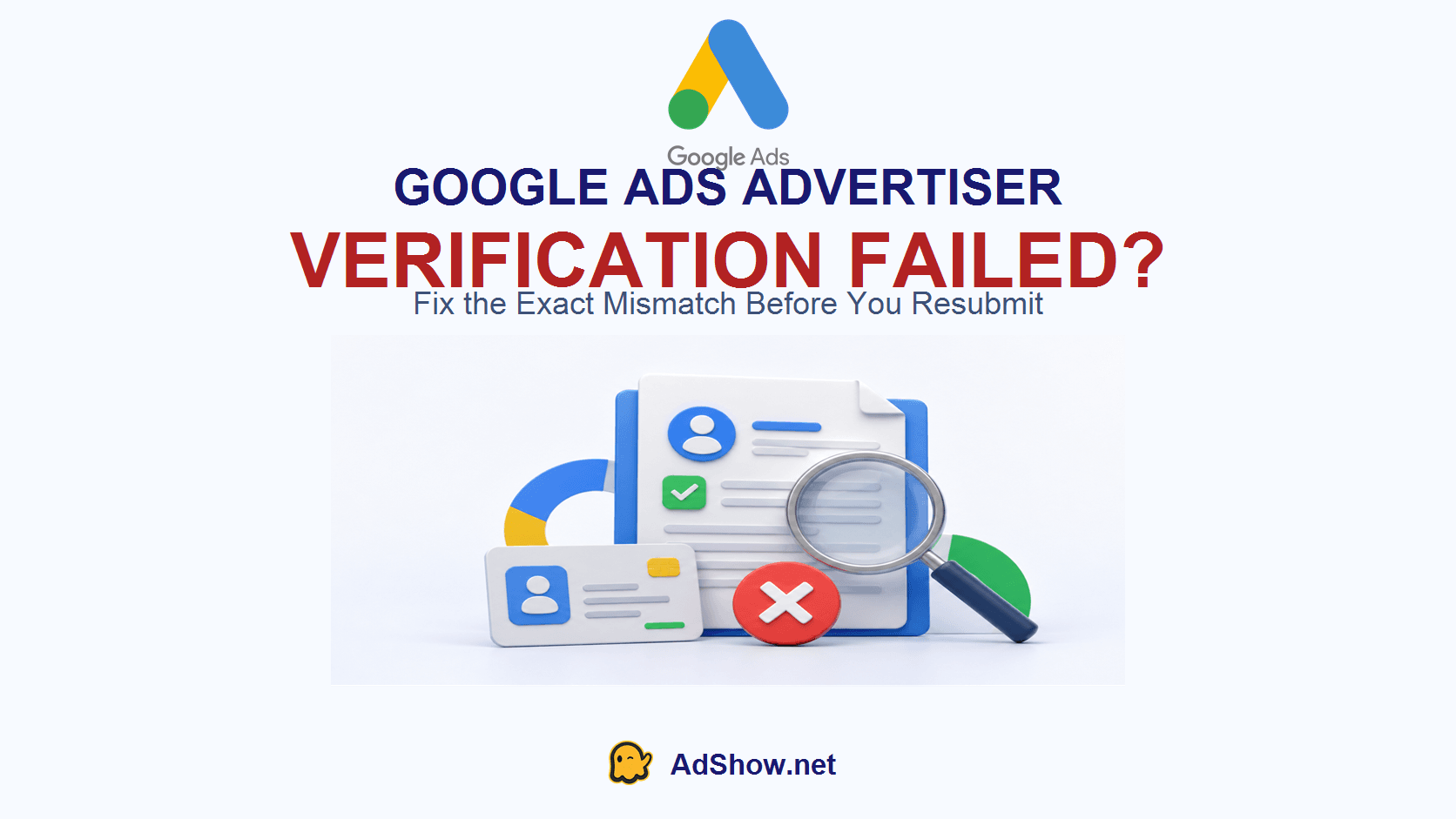
Table of contents
The short answer: classify the failure before changing anything
Open Admin → Policy → Account and read the task status, account notification and email together. Google’s current verification documentation separates document problems from business-operations problems. That distinction determines whether you should replace a document, correct a legal-name or country mismatch, explain a business relationship, provide a licence, or ask Support to reopen/reset a broken verification path.
Do not repeatedly upload alternative documents, change the payments profile or create another Ads account without understanding the failure. Google says verification attempts are limited, false information can lead to suspension, and new accounts may also be paused when verification is unresolved.
Need a managed account workflow after the advertiser is eligible? Review Google agency ad account options at AdShow. AdShow provides a dashboard for account requests, top-ups and issue reporting; it does not replace Google’s advertiser-verification or policy decisions.
Recent discussions show four different verification failures
Current advertiser reports are valuable because they expose the states hidden behind the phrase “verification failed.” They are user reports, not proof that every account has the same cause or that a proposed fix will work.
Wrong legal entity locked into the task: a May 2026 Google Ads Community thread describes an account paused after verification was started under the wrong company. The advertiser could not replace the legal entity through the visible form and requested a backend reset.
Failed verification and the button disappeared: a February 2026 Google Ads Community question reports that the verification control vanished after failure, turning a document problem into an access-to-task problem.
Verification loop: an April 2026 r/googleads discussion describes phone and ID steps looping without completion. The useful escalation is a timeline of the exact failed steps, not another generic request to “verify the account.”
Completed status that does not clear: a July 2026 Google Ads Community report describes a task that appeared completed but remained visible while campaigns received no impressions.
Together, these reports suggest a better diagnostic question: Did Google reject the evidence, reject the business explanation, lock the wrong identity into the task, or fail to update the workflow state?
1. Determine which verification layer failed
Do not use “advertiser verification” as a catch-all. Record the exact task and message:
Identity verification: Google could not match the individual’s name, government ID or required personal information.
Organization verification: the legal organization name, registration document, address or country does not align.
Business operations verification: Google needs clearer information about who provides the product or service, who owns the domain, who pays for ads, and which third parties are involved.
Vertical-specific verification: the advertiser operates in a regulated category and has not provided the required licence or certification.
Workflow failure: the task disappears, resets, loops, remains pending or shows conflicting status after completion.
Google’s official business-operations troubleshooting guide lists inconsistent account information, unclear business relationships, insufficient information about the provider of goods or services, licensing gaps and document problems as distinct failure classes.
2. Build a one-page identity map before resubmitting
In the accounts we troubleshoot, verification becomes easier when the buyer maps the entities before touching the form. Write down six fields:
the legal advertiser;
the Google Ads account owner/admin;
the payments-profile name and country;
the payer or cardholder;
the owner/provider of the advertised product or service;
the agency, affiliate, reseller or other third party involved.
If these are different parties, the answer is not to hide the relationship. Explain it and provide the requested evidence. For example, an agency may manage the campaigns while the client owns the website and provides the service; a parent company may pay while a subsidiary is the disclosed advertiser. The form, documents, payments profile and website should make those relationships intelligible.
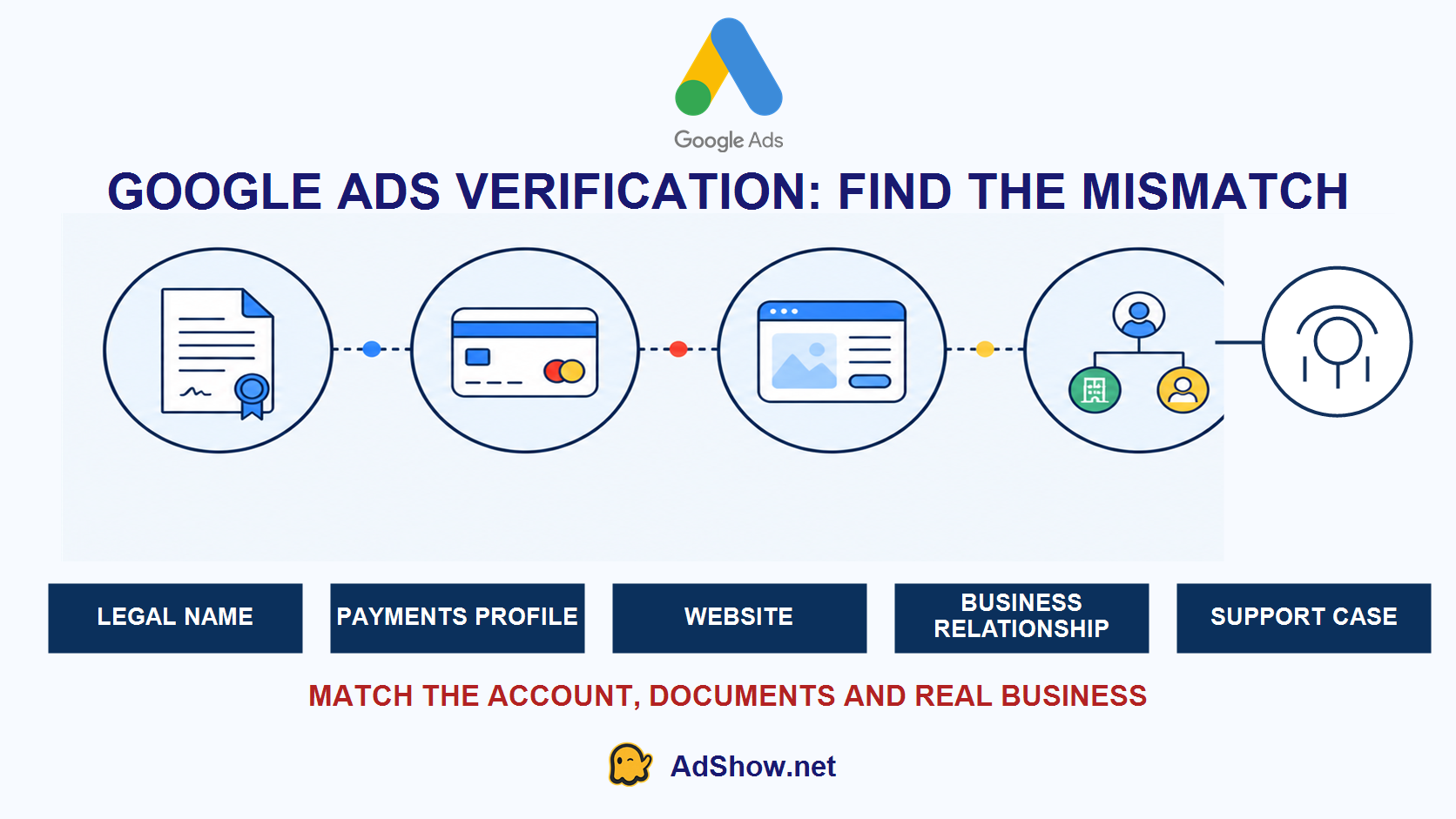
Reconcile the legal entity, payments profile, website, documents and business relationships before using another attempt.
3. Check exact-match details—not approximate matches
Google’s current guidance says the submitted organization name must match the registration document, the individual name must match the government ID, the disclosure name must align with the Ads account, and the payments-profile country must align with the relevant registration or identity document.
Audit punctuation, abbreviations, legal suffixes, translated names, diacritics, addresses and country. “ABC Media,” “ABC Media LLC” and a trading brand displayed only as “ABC” may be commercially obvious to you but still represent three different strings in the verification record. Do not edit a document to force a match. Correct the appropriate account field or request the proper change/reset path.
If the wrong legal entity is already locked into the task and no edit control is available, document that state with screenshots and ask Support for the specific action required: a verification reset or the supported legal-name/ownership change flow.
4. Inspect document quality and eligibility
Google’s document troubleshooting guidance requires complete, readable documents and warns that attempts are limited. Capture the entire document, including all corners. Avoid glare, blur, obstruction, expired documents, cropped pages or uploads that are not the requested document type.
For business-operations evidence, a website screenshot is generally not a substitute for registration, identity, licence or contractual evidence when Google requests those documents. Submit the requested format and all relevant pages. You may redact proprietary information where Google permits it, but do not obscure the fields required to validate identity, ownership or the business relationship.
5. Make the website support the verification narrative
Verification is not only a document-upload exercise. The website should clearly identify the provider of the advertised product or service. Check the company or trading name, physical or service address where appropriate, contact methods, product/service description, pricing or quote process, privacy policy, refund/returns terms and required regulatory disclosures.
If the account advertises for another company, ensure the relationship is not disguised. If the business is a marketplace, lead generator, reseller, franchise, affiliate or agency, explain who receives the customer’s money and who fulfils the service. A verification answer that says “we provide the service” while the website names a different provider creates a preventable contradiction.
6. Handle a missing button or verification loop as a workflow case
Refreshing the browser or clearing cookies can rule out a display problem, but it cannot repair a backend task locked to the wrong entity. Capture the customer ID, task name, status, last submission date, exact email, missing control and each redirect or loop.
Open one Support case and ask for a precise outcome:
Google Ads customer ID [CID] cannot complete advertiser verification. The task is [TASK NAME]. On [DATE], we submitted [DOCUMENT/FORM]. The current status says [EXACT MESSAGE], but [BUTTON IS MISSING / TASK RESTARTS / COMPLETED STATUS DOES NOT CLEAR]. Please confirm whether the evidence was rejected or whether the verification workflow needs to be reopened or reset. We can provide the original documents and screenshots associated with this task.
Do not open duplicate cases with different explanations. One chronological record is easier to escalate and less likely to create contradictory instructions.
7. Know when failure becomes an account-pause or suspension problem
Google says an account can be paused after a deadline or multiple unsuccessful verification attempts. A paused account is not automatically the same as a policy suspension, although verification may also be required before a suspended advertiser can access an appeal.
If the interface explicitly says the account is suspended—not merely paused—follow the policy named in the notice. The broader recovery process is covered in AdShow’s guide on what to do when a Google Ads account is suspended. Do not create a new account to escape either state; Google warns that related new accounts may also be paused.
When a Google agency ad account is relevant
An agency ad account does not erase a failed advertiser verification or authorize an ineligible business. Verification and policy compliance remain Google’s decisions. Agency-account access becomes relevant only after the advertiser and campaign are eligible, when the operational problem is requesting accounts, funding, tracking balances, receiving top-up notices or reporting account issues across a media-buying team.
AdShow provides agency advertising accounts for Google Ads, Meta/Facebook, TikTok, Microsoft/Bing and other major platforms through a self-service dashboard. Review the current terms and operating flow in the AdShow FAQ before requesting or funding an account.
Questions collected from recent advertiser and support discussions
These questions reflect current 2026 verification reports. They identify recurring symptoms; Google must confirm the reason and remedy for each account.
Why did my Google Ads advertiser verification fail?
Common documented categories include a legal-name or country mismatch, unsuitable or unreadable documents, unclear business relationships, an undisclosed service provider, missing licences or a workflow problem. Read the exact task notice before resubmitting.
Can I retry Google Ads verification with different documents?
Only submit a different document if it is an accepted document for the failed task and corrects the identified issue. Google limits attempts, so do not upload random alternatives or repeat an unchanged submission.
What if the verification button disappears?
Record the failed task and screenshots, check Admin → Policy → Account, then ask Google Ads Support whether the task must be reopened or reset. A missing control is a workflow/access issue, not proof that a document was accepted.
Why does verification keep returning to “Start task”?
The task may not have completed, may require additional evidence or may be stuck in a workflow loop. Preserve the email and status timeline and request confirmation of the exact task state through one Support case.
Can I create another Google Ads account after verification fails?
Do not create another account to bypass verification or an account pause. Google states that related new accounts may also be paused. Resolve the identity, documentation or workflow issue through the official process.
Research note: This guide distinguishes Google’s official verification requirements from recent user-reported workflow symptoms. Community posts are not evidence of a universal platform bug and do not guarantee approval. Submit genuine information and use Google Ads Support for account-specific decisions.