Facebook Ad Banned While Running? Check This First
A live Facebook ad can stop because the ad was rejected, another advertising object was restricted, verification was requested or delivery changed. Diagnose the exact scope and status before editing, appealing or replacing anything.

August 15, 2026
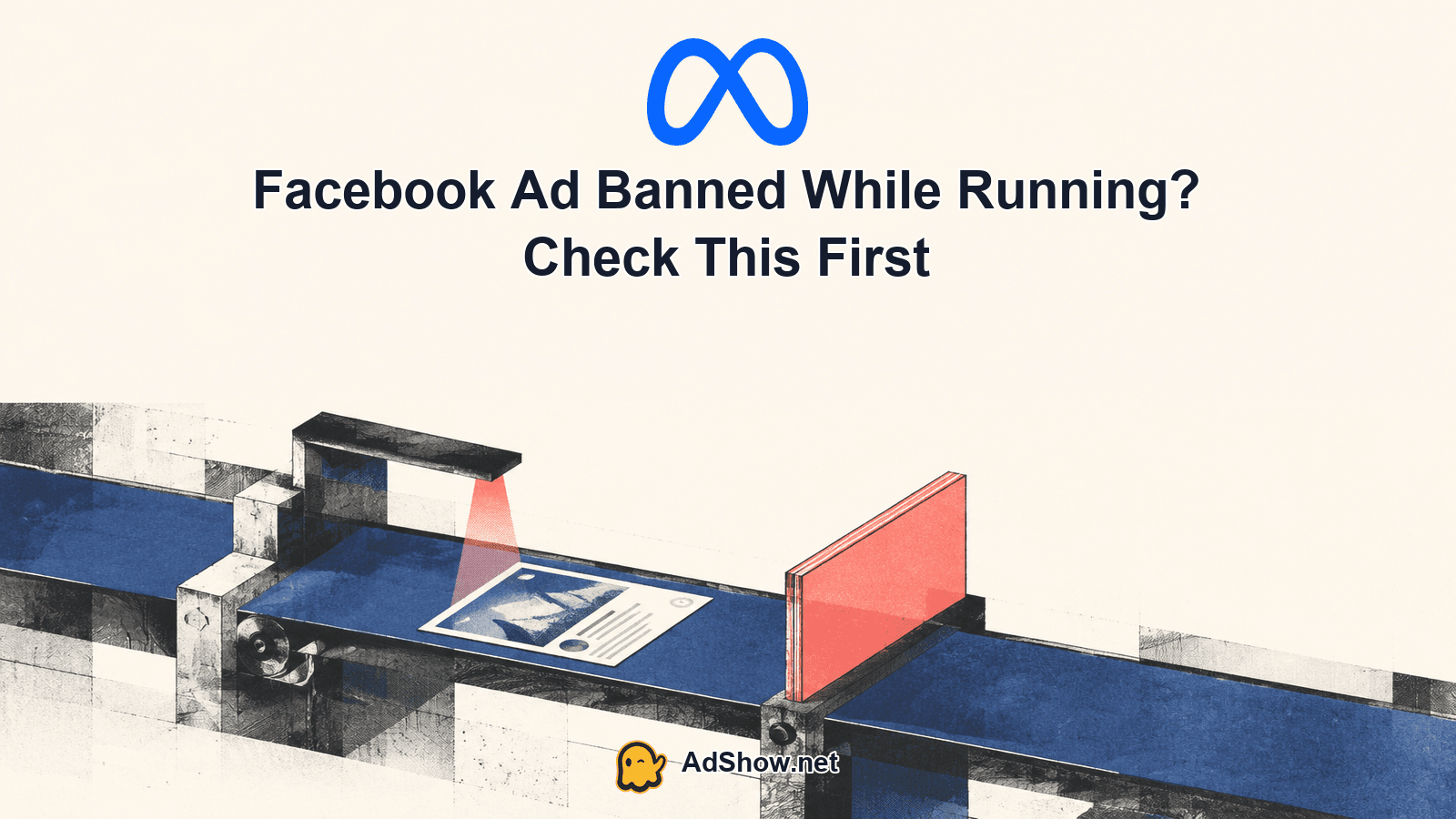
Table of contents
If your Facebook ad was banned while running, first identify exactly what Meta stopped: the ad, ad set, campaign, ad account, Page, user profile or Business Account. Do not immediately duplicate the campaign or open another account. Meta states that ads may be reviewed again after they go live, and its restrictions can apply at several different object levels. Open Ads Manager and Business Support Home, record the exact delivery status and restriction message, then preserve screenshots and recent-change details before editing anything. A rejected ad, a restricted ad account and a verification prompt are different problems with different next steps.
1. Confirm what “banned” actually means
“Banned” is commonly used to describe several outcomes, but it is not precise enough for troubleshooting. Meta’s official delivery-status guidance says the campaign, ad set and ad can display different statuses. For example, the campaign may appear active while a specific ad is rejected. Meta says a rejected ad cannot run, but that does not automatically mean the entire ad account has been disabled.
Check each level separately in Ads Manager. Then check Business Support Home for restrictions affecting assets or people. The affected object determines whether you should inspect one creative, resolve an identity or business requirement, or request a review of a broader restriction.
Ad: One creative, destination or ad configuration has been rejected or stopped.
Ad set: Delivery may be limited by an issue visible at the ad-set level, while other ad sets remain unaffected.
Campaign: The campaign status may differ from the status of the ads inside it.
Ad account: New and existing ads may be unable to run from that account.
Page, user or Business Account: A broader restriction may affect access to or use of connected advertising assets.
Verification or unusual-activity notice: Treat this as a security, identity or business-integrity workflow rather than assuming a creative-policy rejection.
Also separate status from performance. A campaign that stops producing conversions is not necessarily restricted. Conversely, an Ads Manager toggle that still appears on does not prove the underlying ad is eligible to deliver. The object-level delivery message and Business Support Home notice are the stronger diagnostic signals.
2. Read the exact status before changing anything
Write down the exact wording Meta displays. Avoid paraphrasing it as “ban,” because that can send your team toward the wrong remedy. Record where the notice appears, which asset it names, whether a review option is available and when delivery last occurred.
Open Ads Manager and inspect the Delivery column at campaign, ad-set and ad levels.
Open the affected ad and review any stated rejection or delivery explanation.
Open Business Support Home and identify the restricted object named there.
Check whether the notice requests review, identity confirmation, business verification, payment action or another specific task.
Capture screenshots that include the status, object name or ID and visible timestamp context.
Export or record recent campaign results before making structural changes.
List edits, access changes, billing changes or asset connections made shortly before the interruption.
This evidence helps distinguish a re-review of a live ad from a broader account restriction. Meta’s ad review and restriction guidance says ads can be reviewed again after going live and directs advertisers to Business Support Home for account-level review information. Its delivery-status guidance explains why statuses may differ across campaign, ad set and ad.
Harris Eugene’s operator note: Freeze nonessential edits until you have captured the exact status, affected object and recent-change timeline. Changing creative, duplicating campaigns and moving assets simultaneously destroys useful diagnostic evidence and makes it harder to tell which action affected the outcome.
3. Classify the problem into one of four paths
Once you know the object and message, classify the incident. Do not submit repeated reviews or rebuild the campaign until you know which path applies.
Ad-level rejection: Inspect the named ad and the policy category shown by Meta. Review the creative, copy, destination and overall offer presentation against the cited rule. If Meta provides a review option and you believe the decision is incorrect, use that official route.
Account or business restriction: Stop treating this as a single-ad problem. Check Business Support Home for the named ad account, Page, person or Business Account and follow the displayed process.
Verification or security action: Complete only the verification or security steps shown in the legitimate Meta interface. Review administrator access and recent changes, but do not assume a community-reported cause applies to your account.
Delivery or tracking problem: If no rejection or restriction appears, inspect delivery status, dates, budget controls and measurement separately. A reporting gap or conversion decline does not by itself establish that Meta banned the ad.
If the incident followed campaign duplication, compare the original and duplicate at every object level instead of assuming duplication itself caused the restriction. The diagnostic process in Meta account restricted after duplicating ads can help organize that comparison. It does not establish that every post-duplication restriction has the same cause.

4. Preserve the running history and audit recent changes
A previously running ad has a useful timeline. Preserve it before replacing the ad or changing multiple variables. Note the first approval or delivery period, the last confirmed impression or result, the time the status changed and any actions taken shortly beforehand.
Audit changes across four categories. For the ad, review copy, media, destination and any edited fields. For the account, review users, roles, connected Pages and business assets. For billing, record payment-method or balance events visible to your team without assuming they caused the restriction. For the business, record verification requests or security notices shown by Meta.
Do not use past approval as proof of present compliance. Meta explicitly says ads may be reviewed again after going live. Likewise, do not assume that a profitable campaign, an old account or a previously used creative is protected from later review. Those facts describe campaign history, not current eligibility.
5. Choose the next action without multiplying risk
Use the narrowest action that matches the diagnosed scope. If one ad is rejected, work on that ad or use the review option shown for it. If the ad account or Business Account is restricted, follow the corresponding process in Business Support Home. If verification is requested, address that requirement rather than repeatedly editing creative.
Do not repeatedly submit the same request without new information or a changed status.
Do not duplicate a rejected ad merely to test whether it passes elsewhere.
Do not move the same unresolved setup across multiple accounts as a substitute for diagnosis.
Do not remove administrators or disconnect assets randomly while an access issue is being investigated.
Do not interpret temporary delivery, restored access or approval as a guarantee against another review.
Do not promise clients recovery timing, reimbursement, future spend or permanent approval.
For a wider preventive audit, review Facebook ad account health mistakes that can disable a Meta Ads account. Use account-health guidance as operational risk reduction, not as a promise that restrictions cannot occur.
6. Separate platform status, tracking and business outcome
Media buyers should keep three questions separate. Platform status: Is the ad eligible to run, and is any connected object restricted? Tracking: Are events and reported conversions still appearing in the systems you use? Business outcome: Are leads, purchases or revenue occurring?
These layers can diverge. A rejected ad may stop delivery while previously generated conversions continue to appear later in business reporting. An active-looking campaign may show no results because its ads have another status. A business can also experience weaker sales without any platform restriction. Compare the Meta status with delivery data and independent business records before describing the incident to a client or deciding what to rebuild.
Record spend and results only as observed values. Do not infer that Meta will refund prior spend, restore lost revenue or resume delivery at the previous level. Even when access returns, approval, spend and performance remain separate outcomes.
7. When an agency advertising account fits
After diagnosing the current restriction, decide whether your operating setup still fits your business. AdShow is a self-service platform providing agency advertising accounts for Meta/Facebook, Google Ads, TikTok and other major advertising platforms. Its dashboard supports viewing offers and pricing context, submitting account requests, making top-ups and reporting issues.
An agency account is not a policy bypass and does not make a campaign immune to review or restriction. Agency accounts remain subject to Meta’s policies. Do not use a new account to reproduce an unresolved rejected setup or evade a platform decision. Consider the service only after reviewing your assets, offer, access controls and compliance process.
If you have completed the diagnosis and need to assess an agency-account workflow for compliant Meta advertising, review the available account and pricing context. Explore AdShow Facebook agency ad accounts
8. Frequently asked questions
The questions below reflect symptoms raised in recent advertiser discussions. Community posts document individual experiences only; they do not verify the cause of a restriction or establish a platform-wide pattern.
Questions from recent advertiser discussions
Can Meta disable an ad account after a profitable campaign has run for a month?
It can impose restrictions after ads have gone live because Meta says ads may be reviewed again. A June 2026 community post described an account being disabled after a profitable campaign had run for about a month, but the cause was not independently verified. Profitability does not determine policy eligibility. Check the affected object and exact message in Business Support Home rather than assuming performance triggered the restriction.
Why was a campaign restricted if the same ads had run before?
Previous delivery is not permanent approval. Meta states that live ads may be reviewed again. A March 2026 community report described previously used campaigns followed by an unusual-activity or policy restriction, but that anecdote does not prove an automation error. Inspect the current notice, account access, recent changes and the specific asset named by Meta.
Are verification-related Meta restrictions a platform-wide problem?
July 2026 community discussions include advertisers reporting verification-related restrictions. Those reports demonstrate individual symptoms, not a confirmed platform-wide cause. Follow the verification or review instructions shown in your own Business Support Home and avoid applying another advertiser’s diagnosis to your account without matching evidence.
Should I duplicate the campaign or switch accounts immediately?
Not before diagnosing the scope. Duplication can preserve the same unresolved issue and can complicate your timeline. Capture the exact status, identify whether the ad or a broader object is restricted, and follow the official review or verification path shown by Meta. A different or agency account remains subject to platform policy and should not be used to bypass a decision.
Sources and scope
Official documentation defines platform behavior. Recent community discussions are used only to illustrate reported symptoms and questions; they do not prove the cause of an individual account outcome.
Meta ad review and restriction guidance — Official support for the statements that ads may be reviewed again after going live, restrictions can affect the ad account, user, Page or Business Account, and advertisers can review issues through Business Support Home.
Meta delivery statuses — Official support for distinguishing campaign, ad-set and ad delivery statuses and for the statement that a rejected ad cannot run.
July 2026 verification-related restriction discussion — Anecdotal reports of verification-related restrictions. The discussion does not establish a platform-wide cause.
June 2026 profitable campaign disabled report — Individual report of an account being disabled after a profitable campaign had run for a month. The cause was not independently verified.
March 2026 ad account banned report — Anecdotal report involving campaigns that had run previously and a later unusual-activity or policy restriction. It does not prove an automation error.