Google Ads Says “Eligible”—but Your Campaign Has 0 Impressions and $0 Spend: A 12-Step Diagnostic
Logged in to Google Ads but campaigns show Eligible with zero impressions or spend? Diagnose account, billing, policy, targeting and bidding issues in order.

August 8, 2026
Table of contents
Looking for the official Google Ads login? Go directly to ads.google.com. Check the domain before entering a password or verification code.
Already signed in, but your campaign says “Eligible” while impressions, clicks and cost remain at zero? Do not rebuild the campaign yet. “Eligible” means an ad or campaign is allowed to participate; it does not guarantee that it will enter every auction, win an impression or spend its daily budget.
After 13 years working inside Google Ads accounts, I diagnose zero-spend cases in a fixed order: account first, campaign second, auction third. That order matters. Changing keywords will not resolve a billing hold. Raising bids will not fix an uncompleted verification task. Rebuilding a campaign can erase the evidence that would have shown where delivery stopped.
This guide is for advertisers who can access Google Ads but cannot get a new or existing campaign to serve. If the interface displays an account suspension notice, use the suspension path linked below instead of treating the issue as ordinary campaign optimization.
The short answer
If Google Ads is not spending, classify the failure before optimizing:
Account-level block: suspension, payment failure, advertiser verification, security review or spending restriction.
Campaign-level block: paused hierarchy, dates, policy review, targeting, audience, asset or goal configuration.
Auction-level failure: low search volume, negative keyword conflict, restrictive bid target, insufficient Ad Rank or too little eligible demand.
Start with the Overview, Billing and Admin/Policy areas. Then trace one campaign from campaign to ad group, ad or asset, keyword or audience, and conversion goal. Only after every component is eligible should you treat the problem as an auction issue.
What “Eligible” actually means
Google distinguishes between campaign, ad, asset, keyword and bid-strategy statuses. One green status does not certify the entire delivery chain.
According to Google’s current status documentation:
Eligible means the item can run, subject to the rest of the account and auction conditions.
Eligible (limited) means delivery may be restricted by policy, budget or bidding conditions.
Under review means the ad or asset has not completed review.
Not eligible means the item cannot currently serve, commonly because a parent object is paused, removed, ended, pending or incomplete.
Disapproved means the ad cannot run because its content or destination violates policy.
A campaign may be Eligible while all usable keywords have low search volume. An ad may be Eligible while the campaign is scheduled for tomorrow. A keyword may be Eligible while a Target CPA is too restrictive to win traffic. The diagnosis must follow the entire chain.
The three-layer diagnosis
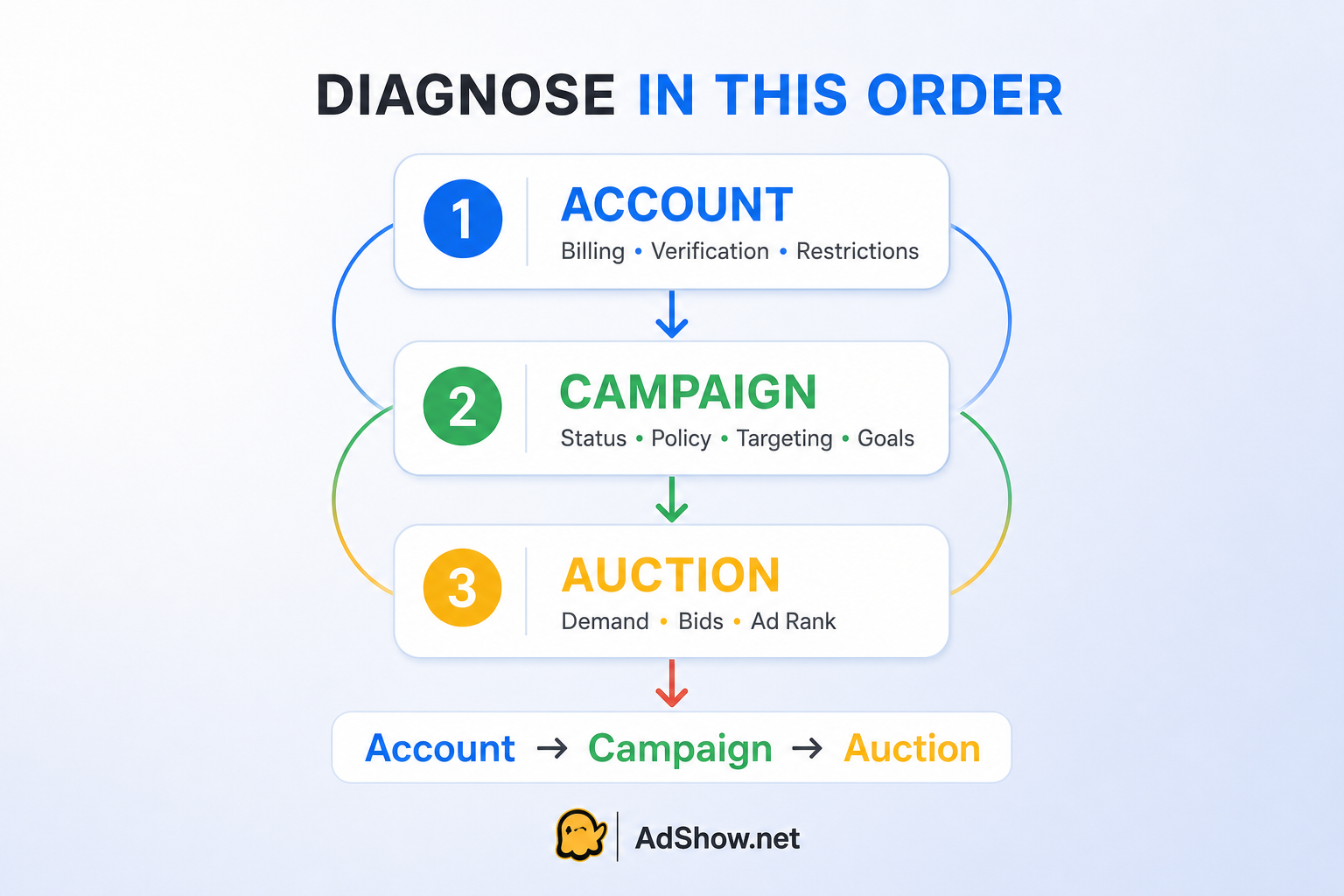
Layer 1: account
Ask whether Google currently allows the advertiser to spend. Check suspension, billing, payment verification, advertiser verification, security review and account-level spending limits.
Layer 2: campaign
Ask whether the campaign is structurally capable of serving. Check hierarchy status, dates, schedule, locations, languages, audiences, ads, assets, keywords, products and conversion goals.
Layer 3: auction
Ask whether enough eligible demand exists and whether the campaign can compete for it. Check search volume, negative conflicts, bid targets, Ad Rank, budget constraints and learning conditions.
This prevents the most common troubleshooting mistake: making an auction-level change before confirming that the account is allowed to enter the auction.
The 12 checks
Check 1: confirm the correct account and reporting view
Start with basics that experienced buyers still miss during rushed launches:
Confirm the Google Ads Customer ID in the top navigation.
Confirm you are not viewing another client account through a manager account.
Set the reporting date range to include today and the campaign start date.
Remove filters hiding active campaigns or current statuses.
Confirm the interface time zone and the campaign’s scheduled start time.
Compare account-level and campaign-level impressions, not only one ad group.
If a team member says “the account has no spend,” ask for the Customer ID, date range and campaign ID before investigating. Similar account names and stale filters waste hours.
Check 2: check whether the account is suspended or paused
Look for a red or prominent account notification and check email sent to account administrators. A suspended account cannot serve ads, even though Google generally still allows the advertiser to log in and view reports or complete limited actions.
Do not create another account to restore delivery. Google states that related accounts and new accounts created by a suspended advertiser may also be suspended.
If a suspension is visible, stop this zero-spend checklist and follow What to Do When Your Google Ads Account Is Suspended in 2026. If the named violation is Circumventing Systems, use the more specific causes, fixes and appeal guide.
A paused account is different from a suspended account. Google may pause accounts or restrict spend during verification, policy investigation or security review. Record the exact language used in the interface rather than describing every interruption as a suspension.
Check 3: inspect billing and payment status
Open Billing and confirm:
the primary payment method is active;
there is no declined payment or overdue balance;
payment-method verification is complete;
the billing profile belongs to the correct payer;
account currency and payment setup are what the advertiser intended;
any backup payment method is valid;
a promotional balance is not being mistaken for proof that billing is clear.
Google explains that a declined payment can stop ads until the payment issue is resolved. Suspicious or unauthorized payment activity can also restrict spend or lead to suspension.
Do not repeatedly add cards from unrelated people or entities. If the bank declined the transaction, contact the bank and correct the payment issue. If Google requests payment verification, complete the requested flow with accurate information.
Check 4: check verification, security review and spending limits
Go to the account policy and verification area and review all active tasks and notifications. A campaign can look healthy while the account is affected by:
advertiser verification not completed;
failed or inconsistent identity/business documents;
a standard security review;
a temporary daily spending limit;
limited ad serving;
an account recently reactivated after inactivity;
unconfirmed users or domains.
Google says account-level daily spending limits can override campaign budgets. Limits are commonly associated with new or recently changed accounts, suspicious activity and pending advertiser verification. Google also documents some standard security reviews that may not show an obvious in-account notification.
This is why changing bids is a poor first response when every campaign in the account remains at zero.
Record the Customer ID, verification state, payment state and all notifications. If every enabled campaign stopped together, suspect an account-level constraint before assuming all campaign settings failed simultaneously.
Check 5: trace status through the campaign hierarchy
Open one affected campaign and follow the chain:
Campaign enabled?
Ad group or asset group enabled and complete?
At least one usable ad or asset approved?
At least one eligible keyword, product group or audience signal available?
Primary conversion goal attached where the campaign type requires it?
Parent and child statuses interact. Google describes a campaign as Not eligible when it has no usable ad groups, or when its ads or keywords are paused or removed. A green campaign icon is therefore not enough; confirm that a complete path to an auction exists.
For copied campaigns, check whether shared budgets, portfolio bid strategies, conversion actions, audience lists or location exclusions carried over as intended.
Check 6: inspect review and policy details
Add the Policy details column to ads and assets. Look for:
Under review;
Eligible (limited);
Approved (limited);
Disapproved;
destination not working;
vertical certification or regional restriction;
trademark, healthcare, financial, gambling or personalized-ad limitations.
Google says ad review typically takes one business day, while complex reviews may take longer. For Performance Max, Google advises allowing roughly 24–48 hours for review and avoiding frequent major edits during the early ramp-up period.
Each significant edit can restart review or learning. Do not “fix” an under-review campaign every few hours unless you have identified an actual error.
If the account is not suspended but repeated policy mistakes are accumulating, review 10 mistakes that can suspend a Google Ads account before resubmitting more variations.
Check 7: verify dates and ad schedule
Check:
campaign start and end dates;
current account time zone;
ad schedule days and hours;
whether the daily schedule already ended;
whether an automated rule or script paused the campaign;
whether the report includes the correct day.
A campaign scheduled for business hours in another time zone can appear broken to a team reviewing it locally. A copied campaign may retain an old end date. These are simple errors, but they should be eliminated before changing strategic settings.
Check 8: test location, language and audience restrictions
Targeting layers can shrink eligible demand to zero. Review:
included and excluded countries, regions, cities or radiuses;
location presence versus interest settings;
languages;
audience set to Targeting rather than Observation;
demographic exclusions;
customer-list eligibility and size;
combined audiences;
device adjustments or exclusions;
campaign-type-specific inventory limitations.
Google notes that very small radius targets may show intermittently or not at all. Check whether exclusions cancel the included area or whether an audience restriction unintentionally requires every user to belong to a small list.
For Search campaigns, use Google’s Ad Preview and Diagnosis tool under Tools → Troubleshooting. It can test a keyword, location, language and device without adding impressions to the campaign. Do not repeatedly search Google for your own ad; that is less reliable and can affect the signals you see.
Check 9: check keyword eligibility and negative conflicts
For Search campaigns, review the keyword Status and Policy details columns. Pay particular attention to:
Low search volume;
Below first page bid estimate;
Rarely shown due to low Quality Score;
paused or removed keywords;
disapproved final URLs;
negative keywords blocking the intended query;
negative keyword lists inherited from an account or shared library;
match types that are too narrow for available demand.
Google defines Low search volume as a keyword with very little or no search history. It remains inactive until search traffic increases. A campaign can therefore be “Eligible” while its keywords generate no meaningful entry into auctions.
Before broadening match types, search the negative-keyword inventory and use Keyword Planner. A broadening test is useful only if the offer, location and budget can accept the extra traffic.
Check 10: check bids, targets, budget and Ad Rank
Zero spend is sometimes the campaign doing exactly what the buyer instructed.
Review:
manual CPC or maximum CPC too low for the market;
Target CPA set far below a realistic acquisition cost;
Target ROAS set too aggressively for available volume;
Target Impression Share configuration;
shared or portfolio strategy constraints;
average daily budget too low relative to expected click cost;
campaign status marked Limited or Misconfigured;
low Ad Rank caused by bid, relevance or landing-page experience.
Do not raise everything at once. Change one constraint, document the timestamp and observe whether impressions begin. If you simultaneously change bids, match types, locations, ads and conversion goals, you will not know which change restored eligibility.
“Limited by budget” usually means the campaign already has demand and could capture more. A campaign with literally zero impressions needs a broader eligibility diagnosis before budget alone is blamed.
Check 11: audit conversion goals and Smart Bidding inputs
Smart Bidding depends on correctly configured goals and usable signals. Verify:
the intended conversion action is Primary rather than Secondary when bidding should optimize to it;
the campaign uses the correct account-default or campaign-specific goals;
the Google tag or imported GA4 conversion is active;
a newly created Performance Max campaign has the required conversion goal;
the value configuration supports a value-based strategy;
a portfolio strategy is not inheriting an inappropriate target;
recent tracking changes did not remove the signal the strategy expects.
A broken tag does not always stop Search impressions. But misconfigured goals, unrealistic targets and automation with weak inputs can severely restrict delivery—especially in new accounts or low-volume campaigns.
Use change history to identify when spend stopped relative to goal, tag or bidding changes.
Check 12: inspect Performance Max and Merchant Center dependencies
Performance Max adds dependencies beyond an ordinary Search campaign. Check:
asset groups and assets are approved;
a primary conversion goal is attached;
the campaign has completed initial review;
Merchant Center is linked to the intended Google Ads account;
products are approved and eligible for the target country;
feed destination, currency and availability match the website;
final URL expansion and page-feed settings are intentional;
listing groups are not excluding all products;
Merchant Center does not have an account-level issue.
Google’s Performance Max troubleshooting guidance lists account issues, dates, campaign state, learning, budget, bid targets, conversion tracking, policy review, auction dynamics and Merchant Center issues among the common causes of low or absent traffic.
For a new Performance Max campaign, allow review and ramp-up time before declaring it broken. Google recommends avoiding frequent drastic changes during the initial learning period.
When to wait and when to escalate
Wait and monitor when
new or edited ads are still within a normal review window;
a new automated campaign has just entered learning;
you recently made one documented eligibility correction;
Google shows an active verification or review with a stated process;
impressions have begun, even if spend is still below budget.
Escalate when
all campaigns remain at zero despite a clean account and complete eligibility chain;
the campaign has no impressions after the reasonable review period stated in Google’s diagnostics;
billing is successful but the interface still shows a payment constraint;
verification is complete but an account-level pause remains;
Ad Preview and Diagnosis reports an account issue you cannot resolve;
support is needed to confirm a security review or account-level spending restriction;
spend stopped immediately after unauthorized access or an unexplained account change.
Escalation should be evidence-based, not a generic “my ads are not working” ticket.
What not to change during diagnosis
Avoid these reactions:
rebuilding the entire campaign before identifying the blocked layer;
creating another Google Ads account because the first one will not spend;
replacing payment methods repeatedly with cards from unrelated people;
editing ads every few hours while they are under review;
switching bidding, goals, keywords and locations simultaneously;
searching for your ad repeatedly on Google.com;
submitting a suspension appeal when the account is not actually suspended;
treating an agency account as a way around verification or enforcement.
Preserve the original state long enough to understand it. Good troubleshooting produces a cause, not merely a campaign that mysteriously started after ten uncontrolled changes.
What to send Google Ads support
Prepare one compact incident record:
Customer ID and campaign ID;
exact date and time delivery stopped or failed to begin;
screenshots of account, campaign, ad/asset and keyword statuses;
billing and advertiser-verification status;
impressions, clicks and cost for the correct date range;
Ad Preview and Diagnosis result for Search;
Merchant Center status for retail campaigns;
recent change-history entries;
what you already checked and what changed;
whether every campaign or only one campaign is affected.
A useful support question is specific:
Customer ID [ID], campaign [ID], has remained enabled with zero impressions since [time]. Billing and advertiser verification show [status]. Ads and keywords show [status]. Ad Preview and Diagnosis reports [message]. Can you confirm whether an account-level security review, spending restriction or other serving limitation is active?
That gives support a testable problem rather than asking for general optimization advice.
Where a Google agency ad account fits
A Google agency ad account can provide additional advertising infrastructure, but it does not fix a campaign that is structurally unable to enter auctions, and it must not be used to bypass a suspension or verification requirement.
AdShow provides Google Ads agency accounts, alongside Meta/Facebook, TikTok and other major agency advertising accounts, through a self-service dashboard. Users can review available packages, request accounts, manage balances and top-ups, and monitor operational status without handling every routine step through chat.
Before requesting an account, document:
the legal advertiser and website owner;
who pays and controls billing;
the campaign’s policy and vertical requirements;
the intended GEO and account package;
who controls conversion tracking and Merchant Center;
what the provider’s suspension, balance and replacement terms cover;
whether an existing suspension or unresolved policy issue must be handled first.
Review the current Google Ads agency account options on AdShow. The correct account infrastructure can simplify operations; it cannot make an ineligible campaign eligible or override Google’s enforcement.
Questions advertisers repeatedly ask
These questions reflect recurring concerns found in public Google Ads forums and Reddit discussions about campaigns marked Eligible but receiving no impressions or spend. Answers are checked against current Google Ads Help documentation, but the exact cause still depends on account status, campaign type, market and configuration.
Why does Google Ads say Eligible but show zero impressions?
Eligible means the campaign or item is allowed to serve, not that every other requirement is satisfied. Check account status, billing, verification, hierarchy, dates, targeting, keyword volume, bids and goals in that order.
How long should a new Google Ads campaign take to start spending?
It depends on campaign type and review. Google says ad review commonly takes about one business day and advises allowing 24–48 hours for new or edited Performance Max assets. Automated campaigns may also need a learning period. An explicit account or policy problem should be handled immediately rather than waited out.
Can Google limit spend without suspending the account?
Yes. Google documents account-level daily spending limits and security reviews that can restrict delivery. Some reviews may not display an obvious notification. Verification, payment history and security signals may be relevant.
Does adding more budget fix zero impressions?
Not necessarily. Budget helps when eligible demand already exists. It will not fix a suspension, billing hold, verification problem, paused hierarchy, disapproved ad, low-search-volume keyword or targeting combination with no audience.
Can Target CPA or Target ROAS prevent a campaign from spending?
An overly restrictive target can reduce auction participation or volume. Check bid-strategy status, conversion configuration and realistic historical performance before changing the target. Make one documented adjustment rather than removing all controls at once.
Should I search Google to see whether my own ad appears?
Use Ad Preview and Diagnosis instead. Google recommends it because it tests relevant location, language and device conditions without generating impressions or personalizing results from repeated self-searches.
Should I create a new Google Ads account if the current one will not spend?
No—not until the cause is known. If the original account is suspended, creating or using another related account can create additional enforcement risk. If the problem is campaign configuration, copying it simply reproduces the problem.
Can an agency account solve advertiser verification or policy problems?
No. The advertiser, payer, website, business model and campaign must still meet Google’s requirements. An agency account is operational infrastructure, not an exemption from verification or policy.
Final takeaway
When Google Ads login works but the campaign does not spend, resist the urge to optimize everything. First determine whether the account is allowed to spend. Then prove the campaign has a complete eligible path. Only then diagnose auction volume and competitiveness.
Use the sequence:
Account → Campaign → Auction
That sequence turns “Google Ads is broken” into a specific finding: payment declined, verification pending, security review, hierarchy incomplete, ad limited, schedule closed, location too narrow, keyword inactive, negative conflict, target too restrictive or product ineligible.
If the campaign is compliant and your team needs structured advertising-account infrastructure, compare Google Ads agency account packages on AdShow or create an AdShow account.