Facebook Ad Account Disabled? Identify the Restricted Asset Before You Appeal
A Facebook ad account disabled notice does not always mean the ad account itself was restricted. This guide helps you identify the affected asset, preserve evidence, separate payment failures from policy enforcement, and decide whether to appeal.

August 6, 2026
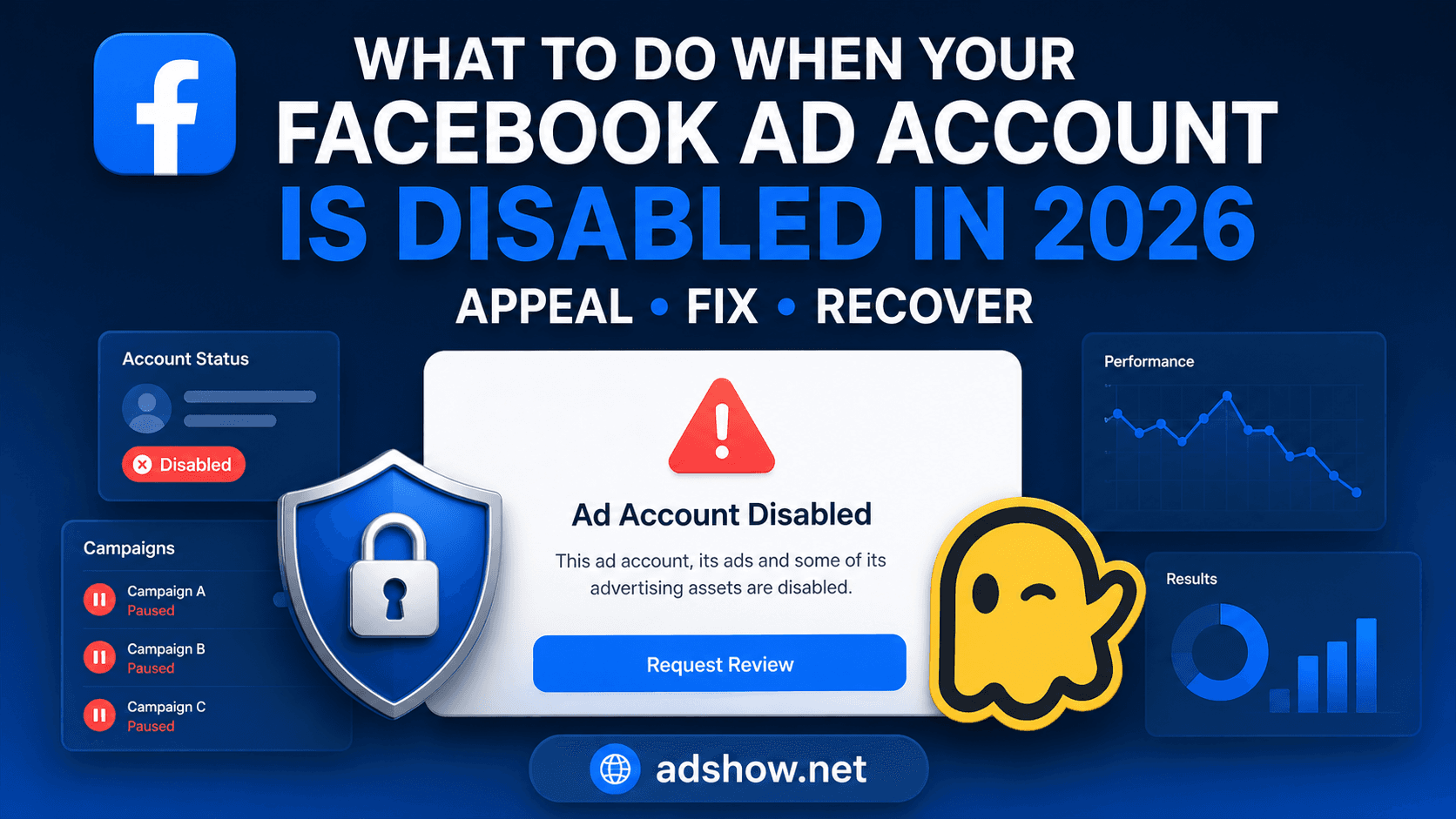
Table of contents
If your Facebook ad account is disabled, first confirm which asset Meta restricted. An individual ad rejection, ad-account restriction, user restriction, Page or Business Account issue, and payment failure require different checks. Open the notice in Ads Manager, Business Support Home, Account Quality, and the email associated with the business. Record the exact wording, affected asset, policy category, date, and available review option before changing campaigns, payment details, users, or domains. Appeal only after you understand the scope and can explain the business, offer, assets, and corrective action accurately.
Start with scope: what exactly was restricted?
The phrase “account disabled” is often used broadly, but the notice should identify the asset or action involved. Look for the account ID, Page name, Business Account, user profile, payment method, ad, or campaign named in the message. A restriction on one asset can affect delivery without proving that every connected asset has the same status.
Ad rejection: One ad, creative, destination, or related campaign item cannot run. The ad account may still be active.
Ad-account restriction: The advertising account cannot create, publish, or deliver ads, or has lost access to advertising features.
User restriction: A person’s profile or permissions are limited. The business and ad account may not be the original source of the restriction.
Page or Business Account issue: A connected Page, Business Account, domain, or business asset has an enforcement or access problem.
Payment failure: A declined card, failed charge, chargeback, billing mismatch, or funding issue prevents delivery. This is not automatically a policy disablement.
Harris Eugene’s operator note: Editorial judgment: diagnose the named asset before reviewing policy details. Starting with creative speculation can waste time when the notice concerns a payment method, user permission, or Business Account instead.
Build a first-hour evidence and status checklist
Preserve the state of the account before deleting ads, removing users, changing domains, or opening another account. Screenshots should show the full notice where possible, including the asset name and any review control. Keep a simple record that separates what Meta stated from what your team believes caused the action.
Copy the exact notice text and save a screenshot from the surface where it appeared.
Record the ad account ID, Business Account ID, Page, domain, affected user, and payment profile named in the notice.
Mark the status of the ad account, individual ads, Page, Business Account, user access, domain, and payment method as active, restricted, rejected, failed, or unknown.
Note the policy category, rejection reason, date shown, and whether a review or appeal button is available.
Export or save the affected ad copy, images, videos, targeting, landing-page URL, offer details, and relevant billing messages.
Review recent administrator changes, unfamiliar logins, new payment methods, chargebacks, and unusual activity without altering the evidence.
Write a short factual business description and a list of changes already made. Do not submit documents or explanations that conflict with the account history.
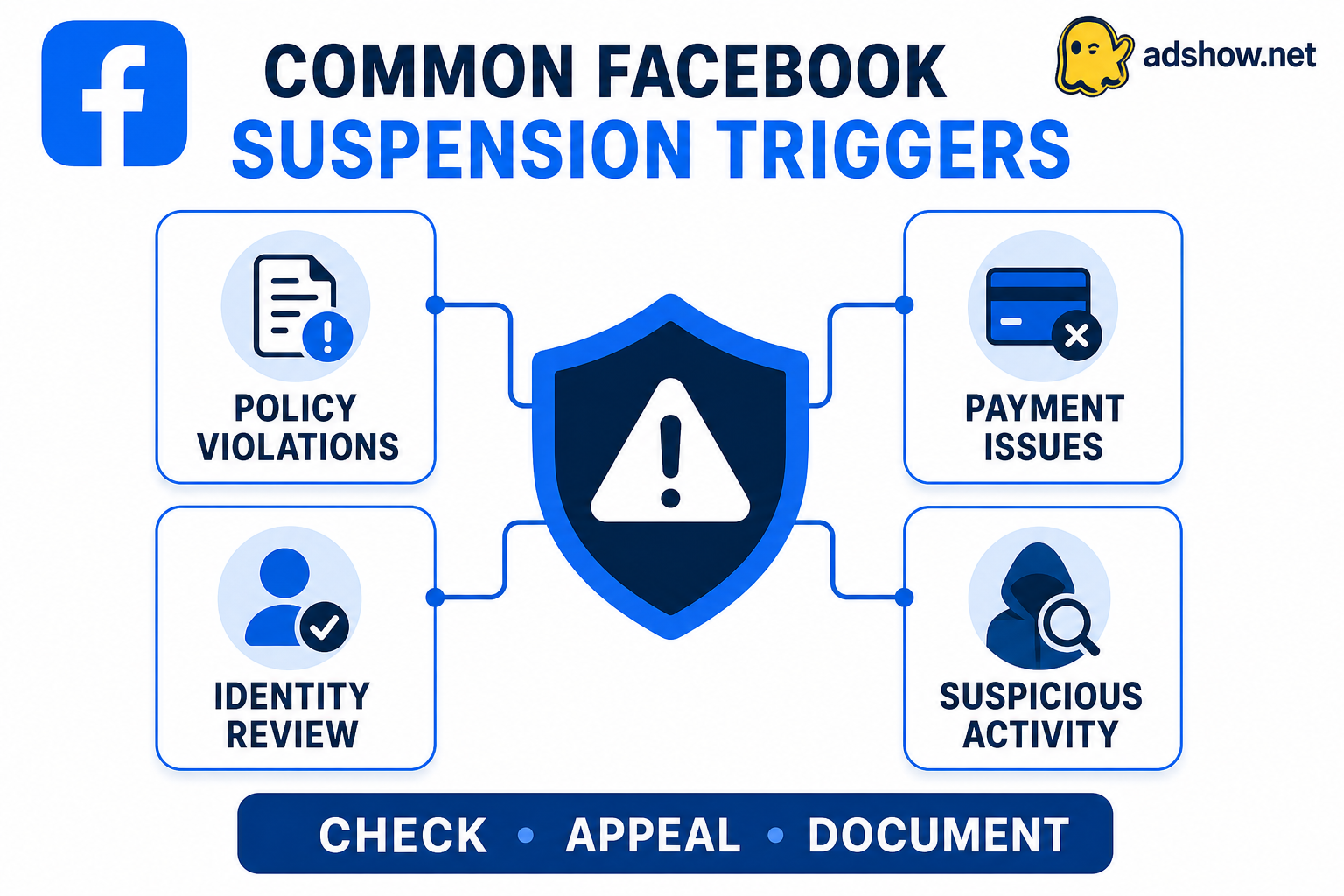
Separate policy enforcement from payment and access problems
A payment error usually points to funding, billing, or payment-method verification. Check whether the transaction was declined, whether a chargeback is being investigated, whether the payment method belongs to the business, and whether billing details match the business information. Do not describe a payment failure as a policy violation unless Meta’s notice says that it is.
An access problem may instead involve a user whose permissions were removed, a compromised profile, or an administrator change. Review Business Account roles, Page ownership, connected Instagram assets, domains, and recent login activity. If the notice names a Page or Business Account, appealing only the ad account may not address the controlling issue.
For a billing-specific workflow, see Facebook ad account disabled because of payment failure. That issue should be documented with the failed transaction, payment-method ownership, and any chargeback or bank explanation rather than with a general policy statement.
Audit the offer, ad, and destination before appealing
If the notice is account-level or cites policy, audit the full advertising path. Meta’s advertising requirements can apply to the product, claims, creative, targeting, landing page, business practices, and connected assets. Compare the exact promise in the ad with what a visitor sees after clicking.
Offer and claims: Check whether the product falls into a restricted or prohibited category, and whether health, financial, employment, personal-attribute, or performance claims are supported and presented accurately.
Creative and copy: Review before-and-after imagery, sensational language, misleading urgency, inaccurate testimonials, personal-attribute wording, copyright or trademark concerns, and claims that the image does not support.
Landing page: Confirm that the destination describes the advertised offer, identifies the business, explains pricing and material conditions, and provides appropriate contact, privacy, terms, refund, shipping, and checkout information.
Business assets: Check Page ownership, Business Account access, domain connections, user roles, Instagram assets, and any previous enforcement affecting connected assets.
Operating behavior: Look for repeated submissions of substantially unchanged ads, attempts to conceal the destination, inconsistent identity information, or changes made solely to avoid an enforcement action.
Choose whether an appeal is appropriate
Appeal when the notice appears to be incorrect or when the business has made specific, documentable corrections and can explain them plainly. Do not appeal merely because delivery stopped. First establish that the problem is account-level, identify the relevant policy or account-quality concern, and confirm that the current offer and destination comply with the applicable requirements.
State which asset was restricted and provide its identifier.
Describe the business, product, customer, and destination without marketing exaggeration.
Address the policy category or account-quality concern shown in the notice.
Explain relevant corrective actions, such as removing an unsupported claim, correcting the landing page, securing access, or resolving a documented billing issue.
Identify supporting records available if Meta requests them, including business information, payment explanations, ownership details, or revised campaign materials.
Ask for a review of the specific restriction. Keep the explanation consistent with the website, account history, and submitted documents.
Use Meta’s available review route, such as the control shown in Business Support Home or Account Quality. Controls and review outcomes vary by affected asset. A review request is not a guarantee of reinstatement, so avoid promising a result or submitting multiple contradictory explanations.
Avoid actions that create a second enforcement problem
Do not create fake profiles, use another person’s identity or payment method, fabricate business documents, hide the destination, or open accounts solely to bypass a restriction. Do not ask a provider to disguise the same prohibited offer. These actions can create additional links between assets and make the record harder to explain.
Do not delete the restricted asset simply to remove the notice, repeatedly submit the same rejected ad, or change the domain without fixing the underlying offer. If you need to preserve campaign information, save the relevant creative, URLs, tracking details, and billing records first. Account recovery and operational continuity are separate questions; a new setup does not resolve a policy or identity problem.
If the account remains restricted and funds, campaigns, pixels, or replacement questions are involved, review what happens to your balance, campaigns, pixel, and replacement options. Treat any replacement discussion as a separate eligibility and continuity review, not as a way around Meta’s decision.
Use AdShow only after the diagnosis is account-level
Once you have confirmed that the restriction is on the ad account itself, the account remains eligible for the relevant service, and the offer is suitable for compliant advertising, the AdShow agency advertising account dashboard can be used as an operational support option. In the self-service workflow, select the platform and account-related service shown in the dashboard, review the applicable terms and requirements, provide the requested account or campaign information, and track the available status or support instructions there.
If the notice is confirmed as an account-level issue and the business is eligible, review the Facebook agency account workflow in the AdShow dashboard. Use the information gathered above so the request reflects the actual asset, offer, and account history; the dashboard does not replace Meta’s review or guarantee approval. Review the Facebook agency account workflow
Final decision checklist
The notice names the asset you are addressing.
You have preserved the notice, IDs, ad materials, landing-page URL, and billing evidence.
You have separated rejection, restriction, access, Page or Business Account, and payment statuses.
The offer, creative, destination, identity, and connected assets have been reviewed together.
Your appeal explains facts and corrective actions rather than arguing from urgency.
You are not using a new account, identity, domain, or payment method to bypass enforcement.
Any AdShow request is based on confirmed account-level scope and eligibility, not on an assumption that the account is permanently unrecoverable.
Common advertiser questions
Is an ad rejection the same as a disabled Facebook ad account?
No. An ad rejection normally identifies a specific ad or destination, while an account restriction limits advertising access more broadly. Check the exact asset named in the notice before choosing an appeal path.
Should I create a new ad account after a restriction?
Not to bypass enforcement. First identify and correct the cause, use the official review route where available, and resolve any connected user, Page, Business Account, payment, or policy issue.
What evidence should I include in an appeal?
Include the restriction notice, affected IDs, a factual business description, the relevant ad and landing-page details, the policy concern addressed, and specific corrective actions. Keep every statement consistent with your site and account records.
What if the notice is actually a payment failure?
Document the failed charge, payment-method ownership, billing details, bank or card explanation, and any chargeback. A payment issue should be handled as a billing problem unless Meta separately identifies a policy or account restriction.
Sources and scope
Official documentation defines platform status and policy. This guide provides an operational diagnostic order; it cannot determine the cause or outcome of an individual account review.
Meta Advertising Standards — Official policy categories and advertising requirements.
Meta account restriction guidance — Official review and restriction context; exact controls vary by affected asset.